Create a Moving Plan for Your Home Office
Relocating a home office requires forethought and careful planning to ensure a smooth transition. Unlike other parts of your home, your workspace often contains essential tools, sensitive equipment, and critical documents that form the backbone of your professional productivity. Developing a comprehensive moving plan tailored specifically to your office needs will not only save time but also reduce stress during the process.
Start by assessing the scope of the move. Take inventory of all items in your home office—furniture, electronics, files, stationery, décor items, and anything else used for work. This step allows you to determine what you really need in your new space versus items you can discard or donate. Decluttering before the move lightens your load and ensures that only necessary items make it into the new workspace.
Next, set clear timelines for each stage of the relocation process. If you’re juggling work responsibilities alongside moving preparations, it’s vital to allocate sufficient time for packing without disrupting ongoing projects or deadlines. Break down tasks into manageable chunks over several days or weeks: one day for organizing paperwork, another for packing electronics securely.
A dedicated checklist can be an invaluable tool during this stage. Categorize tasks into sections such as “packing,” “transporting sensitive files,” “disconnecting electronics,” and “setting up internet services at the new location.” This ensures no detail is overlooked.
Equally important is deciding whether to enlist professional help or manage everything on your own. Professional movers with experience handling office equipment can save time and reduce potential damage risks to high-value items like computers or ergonomic desks. If opting for DIY moving, consider renting appropriate packing supplies such as sturdy boxes designed specifically for electronics and furniture padding.
Communication is another key aspect of creating an effective moving plan. If relevant clients or colleagues rely on you being accessible during this period, inform them about potential downtimes or delays well in advance. Consider drafting an auto-response email informing contacts about expected response times during the move.
Finally, visualize how you want your new home office to look once everything is set up. Planning ahead for furniture arrangements and workspace organization will help guide decisions during packing—such as labeling cables according to their intended usage areas—and make unpacking significantly easier.
By laying out these steps with clear goals in mind, you create a framework not just for transporting physical objects but also for maintaining continuity in how smoothly you operate within your professional space both before and after relocation.
Back Up and Organize Important Digital Files
Moving a home office often involves handling sensitive, valuable, or irreplaceable digital data. Before you start packing your physical workspace, it’s crucial to secure and organize all the digital files that are vital to your professional work. This step not only minimizes risks during the move but also ensures seamless workflow continuity in your new environment.
The Importance of Backing Up Your Files
Whether you rely on a desktop computer, laptop, or external hard drive for work, accidents can happen during a move. Devices can be dropped, damaged by extreme temperatures, or even lost in transit. Backing up files is an essential precaution to protect against such scenarios. Cloud-based storage solutions like Google Drive, Dropbox, or OneDrive offer reliable options for securely saving important documents and work-related materials.
For sensitive business files that need extra security, consider encrypted backup options. Using an external hard drive as an additional safeguard is also recommended; however, always store this separately from your computer systems during transit to avoid losing both backups at once.
Steps to Organize Your Digital Workspace
Once you’ve ensured that all critical data is backed up safely, take the time to organize your digital workspace for easier access after the move. Create folders based on categories such as client projects, financial records, contracts, or personal references. Use descriptive file names to ensure you can easily locate documents later without unnecessary scrolling.
It may also be helpful to delete unnecessary files before backing up — this ensures you’re only migrating relevant data into a new space. Archiving older projects that no longer require frequent access could free up storage space and improve system performance post-move.
Syncing Devices for Better Workflow
If you use multiple devices like laptops and smartphones alongside desk setups in your office environment—sync calendars appointments mails task-manager beforehand
Pack Computers, Monitors, and Electronics Safely
Moving valuable electronics such as computers, monitors, and peripheral devices requires detailed attention to ensure they remain in good condition throughout the moving process. Proper packing techniques not only safeguard these items from damage but also make it easier to set them up quickly at your new location.
Choose the Right Packing Materials
High-quality packing materials are essential when handling fragile electronics. Use sturdy boxes that are appropriately sized for your devices. Ideally, reuse the original packaging if you still have it, as it’s designed to fit and protect your equipment. If not available, select strong cardboard boxes or plastic crates with adequate padding.
Protective materials like bubble wrap, anti-static foam sheets, or padded blankets should be wrapped around monitors and CPUs to shield screens and components from scratches or impacts. Avoid using newspaper or other materials that could leave residue on screens or delicate surfaces.
For smaller electronic items such as external hard drives and keyboards, secure them in padded bags or use compartmentalized storage containers to prevent shifting during transit.
Prepare Devices for Transport
Before packing any device, ensure all cables are disconnected properly. Neatly roll up each cable and secure it with Velcro straps or zip ties to avoid tangling. It’s helpful to group cables by device so they can be easily identified during setup; consider labeling each bundle with color-coded tags or a simple naming system.
For laptops and desktop computers, power down the devices completely before disconnection. If possible, remove batteries from portable electronics to minimize risks of leakage caused by physical movement over long distances.
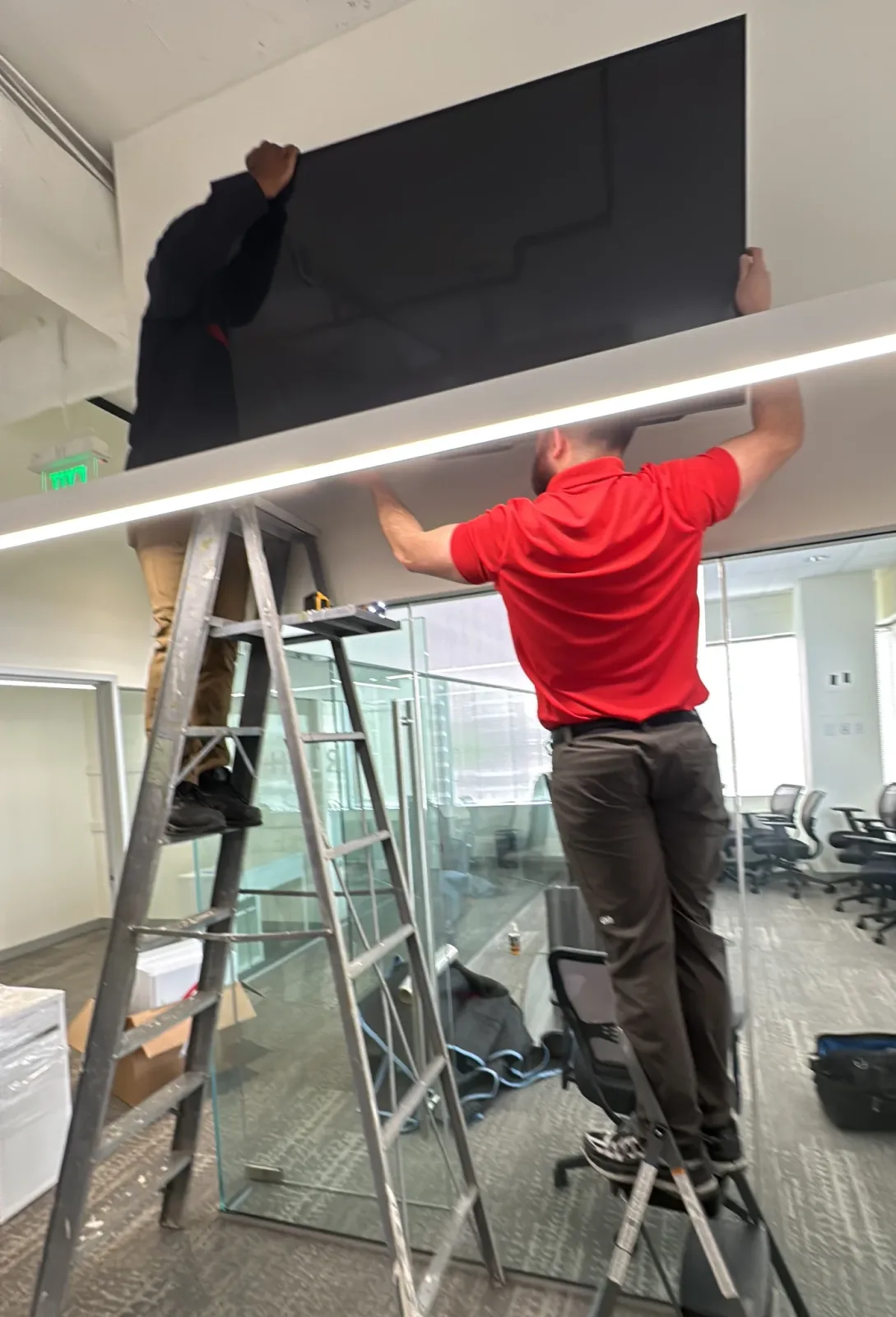
Screens—especially large monitors—should be shielded against pressure cracks by placing a layer of foam board directly over the screen surface before wrapping it in protective material. This prevents direct pressure points that could cause irreparable damage during handling.
Protect Against Static Damage
Electronics are sensitive to static electricity buildup during transportation. Using anti-static bags for internal components like hard drives ensures protection against electrical discharge that could harm delicate circuits. This is particularly important if you’re transporting custom-built PCs with separate internal hardware parts removed for safe travel.
Always avoid placing electronics near magnets (even small ones) while packing since magnetic fields can interfere with certain types of data storage devices like traditional hard disk drives (HDDs).
Keep Climate Control in Mind
Temperature extremes can affect electronic components during a move. Avoid leaving packed electronics in areas subject to excessive heat or cold such as non-climate-controlled storage units or vehicles parked under direct sunlight for extended periods of time. For longer moves where climate control may not always be feasible, prioritize unpacking delicate items like computers first upon arrival at your destination.
Inventory Checklist for Electronics
- Create a detailed inventory list that includes serial numbers along with descriptions of each item being transported.
- Cross-reference this list when unpacking to confirm everything has arrived in good condition.
- Take photographs of high-value items prior to packing so you have a record should any insurance claims need filing due to unforeseen damage.
By following these steps carefully when packing computers, monitors, and other electronic gadgets from your home office space, you’re ensuring their functionality remains intact while reducing stress surrounding potential damages along the way.
Protect Office Furniture and Sensitive Equipment
When relocating a home office, protecting your furniture and sensitive equipment should be a top priority. Office furniture is often custom-designed for comfort and ergonomics, while devices such as printers, external monitors, and other electronics are delicate and costly to replace. Ensuring these items are properly safeguarded during the move can save you time, money, and stress.
Preparing Office Furniture for the Move
Start by assessing your office furniture to determine how it can be disassembled or moved safely. Items like desks, chairs, and shelving units often have detachable parts. If possible, disassemble larger furniture to make transport easier while reducing the risk of damage. Use clear plastic bags or small boxes to store screws, bolts, or other hardware you remove during disassembly. Label these containers clearly so reassembly is quick and seamless.
For upholstered furniture like desk chairs or couches in the office space, consider wrapping them in protective coverings such as padded blankets or plastic wrap to shield against dirt or moisture during transit. Wooden furniture should be carefully cleaned prior to packing to prevent scratches caused by debris.
Safeguarding Sensitive Equipment
Sensitive equipment like high-end computers, printers, scanners, and other technology requires extra care during a move. Start by unplugging all devices well in advance of moving day to allow internal components to cool down completely before handling. Use original packaging when available; manufacturers design these boxes with custom-fit foam inserts that provide optimal protection.
If you no longer have the original boxes for your equipment, substitute sturdy cardboard boxes lined with protective materials such as bubble wrap or foam padding. Wrap each item individually and secure it snugly within its box so it doesn’t shift during transit.
Sensitive screens on monitors and laptops should be covered with microfiber cloths or screen protectors before being wrapped in bubble wrap. Avoid stacking heavy items on top of electronics during transport to reduce strain on delicate components.
Additional Tips for Protection During Transit
- Use moving blankets or corner protectors for sharp-edged furniture that may rub against walls or other items.
- Secure loaded moving boxes using strong packing tape to prevent accidental openings.
- Place heavier electronic devices at the bottom of moving boxes with lighter accessories layered above.
- Label fragile items prominently on all sides of their containers so movers exercise extra caution.
Storing Equipment Temporarily
If your move involves temporary storage before setting up your new home office, ensure that all sensitive equipment is kept in climate-controlled conditions. Extreme heat or cold can damage electronic components over time. Similarly, avoid placing heavy objects on top of stacked boxes containing fragile equipment in storage spaces.
Taking proactive steps to protect both large pieces of office furniture and sensitive electronics ensures they remain functional for years after your move is complete—a worthwhile investment of effort when transitioning into a new workspace efficiently.
Label Cables, Accessories, and Office Supplies
When moving a home office, one of the most overlooked yet critical steps is properly labeling cables, accessories, and office supplies. Mismanaging these small yet essential items can lead to frustration and lost productivity when setting up your new workspace. This part of the moving process requires careful attention to ensure a seamless transition for your office functionality.
Why Labeling Matters
Labeling is not just about convenience; it’s about efficiency. When cables for computers, monitors, printers, and other electronics are not labeled correctly, you may find yourself spending hours untangling wires or trying to remember which cable connects to which device. Similarly, unlabeled office supplies can disrupt workflow as you try to locate important items post-move. Proper labeling ensures that everything remains organized from start to finish.
Steps for Effective Cable Management
- Unplug Carefully: Disconnect each cable one at a time rather than pulling out multiple connections at once. This prevents confusion about where each cable belongs.
- Label Immediately: Use masking tape or pre-made cable tags to label both ends of every cord with its associated device (e.g., “Monitor HDMI” or “Printer Power”). Be as specific as possible so there’s no ambiguity later.
- Bundle Neatly: Wrap cables into manageable coils using Velcro straps or reusable ties to avoid tangling during transport.
- Use Pouches or Small Boxes: Place labeled cords into separate pouches or small containers based on the type of device they belong to—this keeps similar items together and easy to unpack.
Organizing Accessories
For smaller accessories like USB drives, adapters, chargers, and headphones:
– Place them in zippered pouches or resealable bags.
– Label each bag clearly with its contents (e.g., “Laptop Chargers,” “Mouse & Keyboard Accessories”).
– Consider color-coded labels if you have multiple devices with similar accessories.
Managing Office Supplies
Office supplies such as pens, staplers, sticky notes, and paperclips are often scattered throughout a workspace. To prevent these items from being misplaced during the move: – Collect all loose supplies into one container before packing. – Separate high-priority items like notebooks and planners that you’ll need immediately after the move. – Use dividers within boxes or containers to keep smaller supplies organized.
Long-Term Benefits of Labeling
Taking the time upfront to label everything pays off when it comes time to set up your new home office space efficiently. You’ll save significant time reconnecting devices and finding tools essential for maintaining productivity in your work environment. Additionally, this simple step reduces stress by eliminating guesswork during unpacking.
Properly labeling cables, accessories, and office supplies doesn’t just simplify your move—it sets the foundation for an organized workplace where everything has its place from day one in your new space. Planning ahead helps avoid unnecessary delays so you can get back to work quickly and seamlessly in your re-established home office setup.
Set Up Your New Workspace Efficiently
Creating a productive, comfortable workspace in your new location is just as important as ensuring your equipment survives the move. A well-organized setup not only boosts efficiency but also helps you ease into your work routine more seamlessly after a potentially stressful relocation experience. Here’s how to approach setting up your home office in its new environment.
Assess the New Space Before Unpacking
Before jumping into unpacking boxes, take a few minutes to analyze the layout of your new workspace. Pay attention to factors like natural light sources, power outlets, available wall space for shelving or decor, and any potential distractions in the area. This initial assessment will help you make decisions about furniture placement and overall room organization that optimize both functionality and comfort.
Prioritize Desk and Chair Placement
Start by setting up your desk and chair since these are the foundation of productivity in any office space. Position your desk near natural light if possible, but ensure that glare on screens won’t be an issue during work hours. Choose an ergonomic layout—your chair should provide proper lumbar support while aligning with the height of your desk to prevent strain on your wrists and shoulders.
Organize Cables for Accessibility
As you reconnect electronics like monitors, computers, printers, or external hard drives, take this opportunity to organize cables efficiently. Use cable organizers or clips to keep cords from tangling and label each one to make future adjustments easier. Keeping wires neat ensures that maintenance tasks such as unplugging devices during storms or troubleshooting connections remain stress-free.
Use Storage Solutions Thoughtfully
Unpack any filing cabinets, bookshelves, or storage bins from the move and incorporate them into the space strategically. If possible, invest in vertical storage options like tall bookshelves or wall-mounted organizers to save floor space while keeping files and essential supplies within easy reach. Drawer dividers can also help maintain order inside smaller storage units.
Personalize Without Clutter
Adding personal touches like framed photos, plants, or artwork can make the workspace feel inviting without overwhelming it with clutter. Greenery is particularly beneficial since plants improve air quality and add a calming element to the environment.
Test Your Setup for Functionality
Before committing fully to an arrangement, test how well the space functions with all equipment powered on and ready for use. Ensure there’s enough clearance around electrical outlets for airflow (especially for devices like computers) and check whether lighting supports both day-to-day tasks and late-night productivity when needed.
By taking time upfront to set up an efficient workspace tailored to your needs, you’ll save yourself a lot of frustration later while boosting long-term productivity at home.
Set Up Your New Workspace Efficiently
Moving your home office is more than just transporting furniture and electronics; it’s an opportunity to create a workspace that supports productivity, comfort, and organization. Setting up your new workspace efficiently requires thoughtful planning and attention to detail to ensure that once you settle in, you can hit the ground running.
Assess Your Layout Options
Before unpacking, take time to evaluate the layout of your new space. Consider the size of the room, lighting sources (both natural and artificial), proximity to power outlets, and any potential distractions. Position your desk where you’ll have a balance of good light and minimal interruptions. If possible, place it near a window for natural light but be mindful of glare on monitors.
Reconnect Essential Equipment First
To avoid delays in productivity, prioritize setting up essential equipment like computers, monitors, printers, and internet connections first. Check that all devices are functioning properly after reassembly. Connect your Wi-Fi router or Ethernet cables early on to ensure you have internet access as you continue organizing.
If you labeled cables during packing (as suggested in an earlier section), this reconnection process will be much easier. Match each labeled cable with its corresponding device for a seamless setup.
Organize Work Zones
- Primary work zone: Desk area with computers and essential tools.
- Storage zone: Cabinets or shelving for files and supplies.
- Creative or meeting zone: If space allows, consider adding a small table or comfortable chair for brainstorming sessions or virtual meetings.
Having designated areas helps maintain organization while enhancing efficiency.
Maximize Ergonomics
Invest time in setting up an ergonomic workspace that prioritizes comfort during long hours of work. Adjust your chair height so that your feet rest flat on the floor and knees are at a 90-degree angle. Ensure that monitors are at eye level to prevent neck strain. A keyboard tray or cushioned wrist support can also reduce strain over time.
Small additions like a footrest or anti-fatigue mat can make a significant difference if you stand frequently at an adjustable desk setup.
Optimize Cable Management
Once devices are connected and operational, organize cables using ties or sleeves for better aesthetics and safety. Tidy cable management not only prevents tripping hazards but also makes it easier to troubleshoot technology issues later.
Consider labeling power strips clearly if multiple devices are plugged into one area—this saves time when identifying which switch controls what.
Add Personal Touches
While functionality comes first in setting up any workspace efficiently, don’t overlook personalization. Incorporate elements like plants, artwork, or family photos to make the environment more welcoming without cluttering it unnecessarily. A clean yet personalized space contributes positively to mental well-being during work hours.
By thoughtfully arranging furniture, prioritizing essentials first, integrating ergonomic principles, managing cables neatly, and adding personal touches strategically—your new home office will quickly become not only efficient but also inviting for productive days ahead.